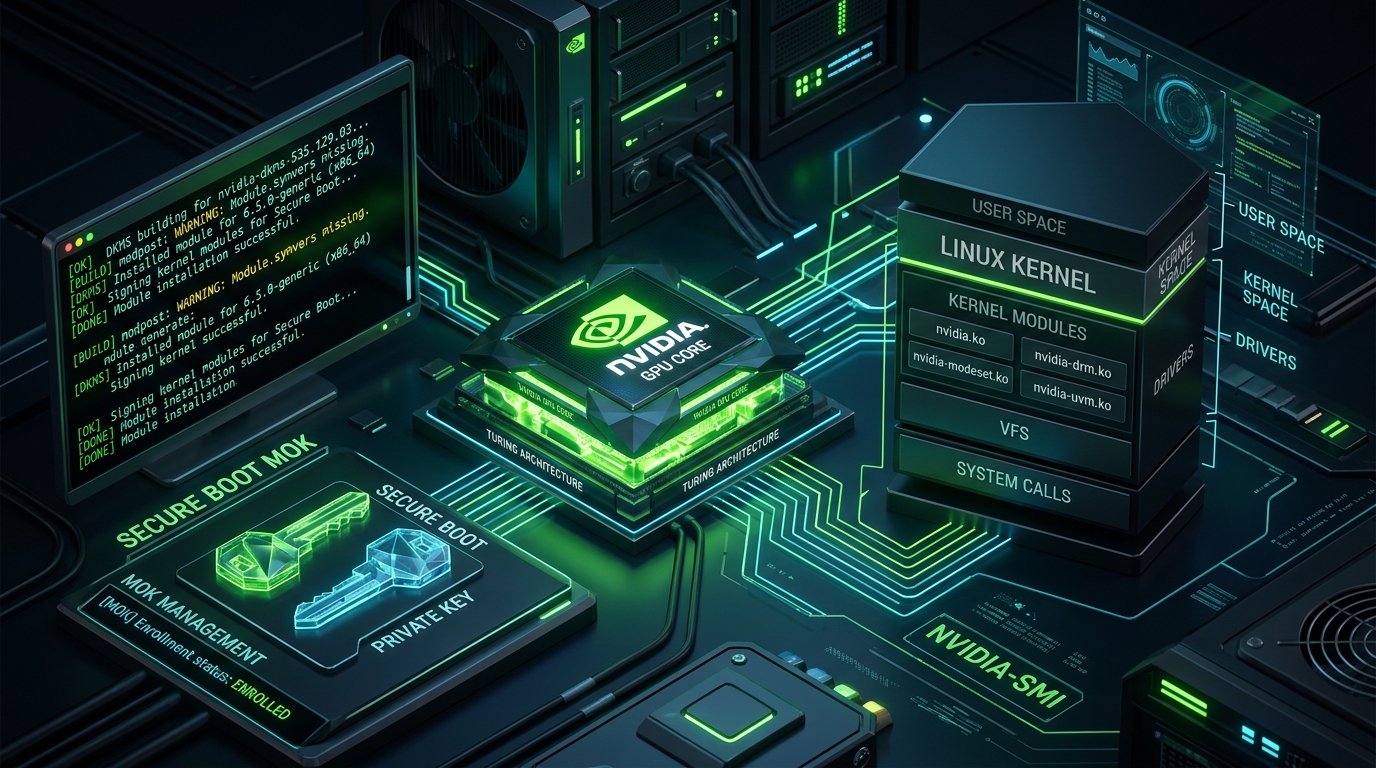
It is a rite of passage for every Linux engineer and enthusiast: you run a routine system upgrade (sudo apt upgrade or sudo dnf update), reboot your workstation or GPU compute node, and are immediately greeted by a blank black screen, a flashing cursor, or a low-resolution software fallback console (LLVMpipe).
The culprit is almost always the fragile bridge between the upstream Linux kernel and the out-of-tree NVIDIA proprietary driver stack (nvidia.ko, nvidia-modeset.ko, nvidia-uvm.ko). When kernel headers change or Dynamic Kernel Module Support (DKMS) compilation fails quietly during package installation, the new kernel boots without GPU driver support.
In this guide, we break down the root causes of NVIDIA driver failures on Linux, establish an emergency recovery workflow, sign kernel modules for UEFI Secure Boot using MOK (Machine Owner Keys), configure smooth Wayland rendering, and automate kernel pinning to prevent unexpected breakage forever.
The Architecture: Why Upstream Kernels Break NVIDIA Drivers
Unlike AMD (amdgpu) and Intel (i915 / xe) which maintain in-tree, open-source drivers in the official Linux kernel repository, NVIDIA has historically relied on proprietary out-of-tree binary modules:
| Component | Role in Linux Stack | Failure Mode on Kernel Upgrade |
|---|---|---|
nvidia.ko |
Core proprietary GPU driver interfacing with hardware PCI bus. | Fails to compile if upstream kernel modifies internal internal C APIs or data structures. |
nvidia-drm.ko |
Direct Rendering Manager interface for display servers (X11 / Wayland). | Causes black screen or Wayland crash if early modesetting (nvidia-drm.modeset=1) is absent. |
| DKMS Framework | Automates compiling kernel modules against newly installed kernel headers. | Fails if corresponding linux-headers-$(uname -r) are missing during package installation. |
| UEFI Secure Boot | Cryptographic verification ensuring only signed kernel modules execute. | Blocks unsigned nvidia.ko from loading into ring 0 kernel memory, returning "Operation not permitted". |
Emergency Triage: Recovering from a Black Screen
If your machine boots into a black screen after a kernel update, use this step-by-step triage runbook:
Step 1: Access a TTY Console
Press Ctrl + Alt + F3 (or F4/F5) to switch from the broken display manager into a virtual terminal console. Log in with your user credentials.
Step 2: Inspect DKMS and Kernel Status
# 1. Check if the NVIDIA kernel module is currently loaded
lsmod | grep -i nvidia

# 2. Inspect DKMS compilation status across all installed kernels
dkms status

# 3. Check exact kernel error logs
sudo dmesg | grep -iE "nvidia|nouveau|secure boot"
Step 3: Force DKMS Module Rebuild
# Install matching kernel headers for your running kernel
sudo apt install -y linux-headers-$(uname -r) build-essential dkms

# Force DKMS to rebuild and autoinstall NVIDIA modules
sudo dkms autoinstall -k $(uname -r)

# Update initramfs (initial ramdisk)
sudo update-initramfs -u -k all

# Test loading the module into the running kernel
sudo modprobe nvidia
sudo modprobe nvidia-drm

# Verify GPU detection
nvidia-smi
Solving Secure Boot Module Rejection with MOK Signing
When UEFI Secure Boot is enabled in BIOS, the Linux kernel refuses to load third-party out-of-tree modules unless they are cryptographically signed with a trusted Machine Owner Key (MOK).
Step 1: Generate a Custom MOK Keypair
sudo mkdir -p /root/mok && cd /root/mok
sudo openssl req -new -x509 -newkey rsa:2048 -keyout MOK.priv -outform DER -out MOK.der -nodes -days 36500 -subj "/CN=SejanDev-Custom-NVIDIA-Key/"
sudo chmod 600 /root/mok/MOK.priv
Step 2: Enroll the Key with mokutil
# Register the public key into the UEFI MOK database
sudo mokutil --import /root/mok/MOK.der
# Enter a one-time enrollment password (e.g., 'SecurePass123')
Reboot the machine. During boot, the blue "Perform MOK management" screen will appear:
- Select Enroll MOK → View key 0 → Continue.
- Select Yes to confirm enrollment and enter your one-time password.
- Select Reboot. Your custom key is now permanently trusted by the motherboard firmware.
Step 3: Sign All NVIDIA Kernel Modules
# Sign all installed NVIDIA modules
for mod in $(dirname $(modinfo -n nvidia))/*.ko; do
    echo "Signing $mod..."
    sudo /usr/src/linux-headers-$(uname -r)/scripts/sign-file sha256 /root/mok/MOK.priv /root/mok/MOK.der "$mod"
done

# Reload modules
sudo modprobe nvidia
Configuring Smooth Wayland Rendering with NVIDIA
Wayland compositors (GNOME Mutter, KDE KWin, Hyprland, Sway) require Early Kernel Mode Setting (KMS) and power management preservation to avoid stuttering, screen tearing, or black screens after sleep/suspend.
Step 1: Enable DRM Modeset in GRUB
Edit /etc/default/grub:
GRUB_CMDLINE_LINUX_DEFAULT="quiet splash nvidia-drm.modeset=1 nvidia-drm.fbdev=1"
# Update GRUB configuration
sudo update-grub
Step 2: Enable Video Memory Preservation on Suspend
Create /etc/modprobe.d/nvidia-power-management.conf:
options nvidia NVreg_PreserveVideoMemoryAllocations=1
options nvidia NVreg_TemporaryFilePath=/var/tmp
# Enable NVIDIA systemd suspend/resume services
sudo systemctl enable nvidia-suspend.service
sudo systemctl enable nvidia-resume.service
sudo systemctl enable nvidia-hibernate.service
When to Switch to NVIDIA Open Kernel Modules (nvidia-open)
Starting with the Turing architecture (RTX 2000 / GTX 1600 series and newer), NVIDIA transitioned their kernel-level drivers to an open-source model (nvidia-open) hosted directly on GitHub, which provides cleaner compilation against cutting-edge Linux kernels.
# Ubuntu / Debian installation for Turing, Ampere, Ada Lovelace, and Blackwell GPUs:
sudo apt install -y nvidia-driver-550-open
Production Hardening Checklist
- ✓ Always install matching headers: Ensure
linux-headers-genericis installed so new kernels automatically trigger DKMS rebuilds. - ✓ Pin stable kernels on production GPU servers: Use
apt-mark hold linux-image-generic linux-headers-genericon AI/CUDA compute nodes to prevent accidental kernel updates during automated unattended upgrades. - ✓ Blacklist Nouveau completely: Verify
/etc/modprobe.d/blacklist-nouveau.confcontainsblacklist nouveauandoptions nouveau modeset=0. - ✓ Verify early modesetting: Ensure
cat /sys/module/nvidia_drm/parameters/modesetreturnsY.
Conclusion
While the friction between bleeding-edge Linux kernels and proprietary GPU drivers remains a classic pain point, it is entirely manageable with sound architecture. By configuring DKMS with proper headers, enrolling custom MOK keys for Secure Boot, and enabling KMS early modesetting, you ensure rock-solid GPU stability, zero-tear Wayland rendering, and smooth kernel upgrades.