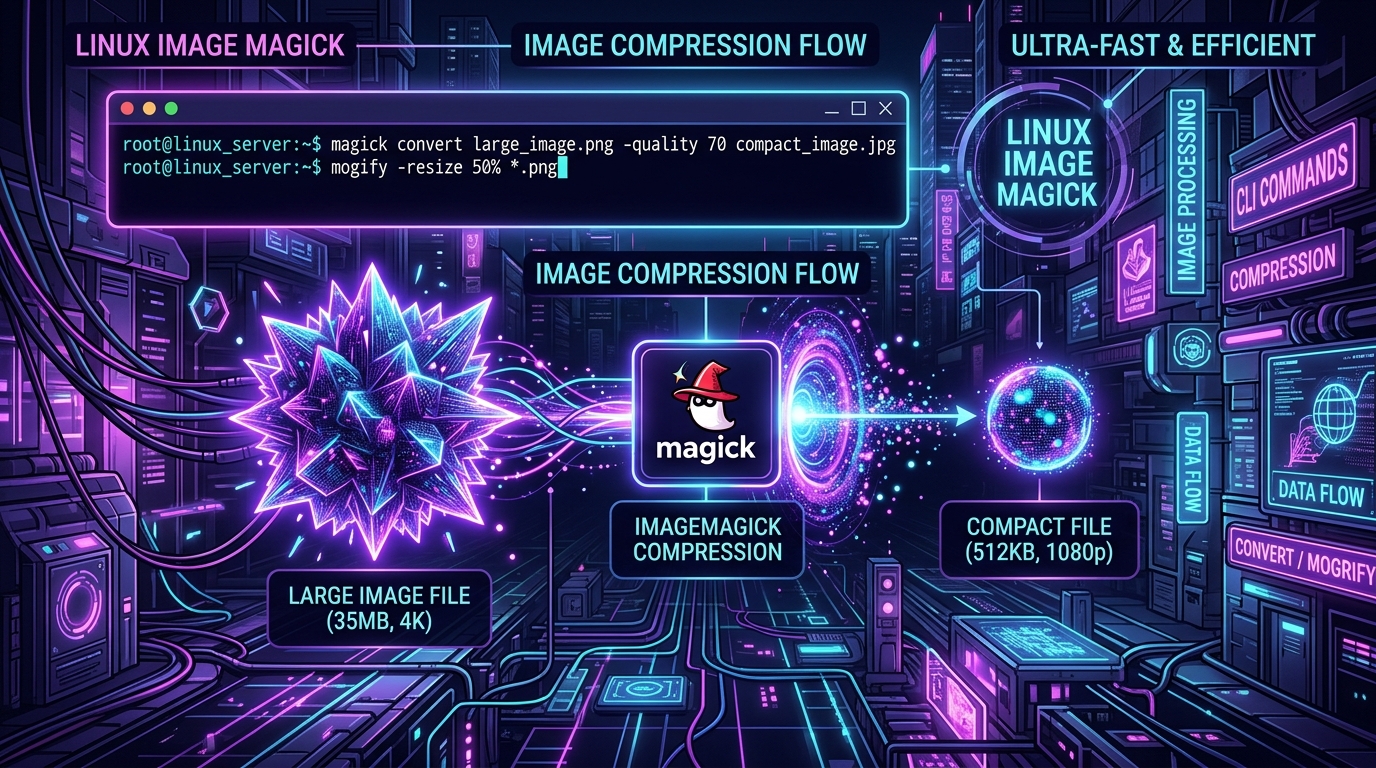
Image assets frequently constitute 60% to 80% of the total byte weight of modern web applications and media uploads. When unoptimized user uploads or high-resolution designer assets sit uncompressed on your server, they silently bloat your backup snapshots, burn disk I/O, inflate CDN bandwidth bills, and destroy Core Web Vitals (LCP).
While GUI tools like TinyPNG or Squoosh are great for manual one-off exports, server-side media processing and Linux sysadmin automation require a battle-tested command-line workhorse: ImageMagick (magick in v7+ / convert & mogrify in v6).
In this guide, we walk through the exact mathematical flags, compression recipes, and automated shell scripts needed to slash image sizes by 50% to 80% while keeping the output visually indistinguishable from the raw originals.
The Physics of Perceptual Compression (Quality vs. File Size)
Most cameras, smartphones, and design software export JPEGs at 100% Quality with uncompressed color subsampling (4:4:4) and megabytes of embedded EXIF camera metadata, color profiles (ICC), and GPS tags. To the human eye, however, the perception of visual sharpness drops off rapidly past 82–85% quality:
| JPEG Quality Setting | Typical File Size | Visual Fidelity (SSIM / DSSIM) | Verdict |
|---|---|---|---|
| 100% (Raw Export) | 4.8 MB | 1.000 (No compression artifacts) | Massive waste of bandwidth & storage |
| 90% – 95% | 2.1 MB | 0.995 (Imperceptible difference) | Acceptable, but still oversized |
| 82% – 85% (Sweet Spot) | 780 KB (~83% savings) | 0.988 (Visually indistinguishable on retina screens) | Recommended Production Standard |
| 60% – 70% | 320 KB | 0.940 (Minor blocking/haloing around edges) | Best for low-bandwidth mobile feeds |
1. The Production JPEG Optimization Recipe
For standard JPEG images, combining four specific ImageMagick flags creates the optimal balance between ultra-compact size and pristine visual clarity:
# ImageMagick 7+ (Modern)
magick input.jpg \
  -strip \
  -interlace Plane \
  -sampling-factor 4:2:0 \
  -quality 82 \
  output.jpg

# ImageMagick 6 (Legacy Linux Distros)
convert input.jpg \
  -strip \
  -interlace Plane \
  -sampling-factor 4:2:0 \
  -quality 82 \
  output.jpg
Breaking Down Each Flag:
-strip: Completely purges EXIF timestamps, GPS coordinates, camera hardware serial numbers, and embedded thumbnail previews. This alone frequently shaves 20KB to 150KB off every photo.-interlace Plane: Converts the image into a Progressive JPEG. Instead of loading top-to-bottom on slow networks, the browser instantly displays a low-res preview that sharpens as data streams in. Progressive JPEGs are also 5% to 10% smaller due to better cross-block Huffman encoding.-sampling-factor 4:2:0: Human eyesight is much more sensitive to spatial luminance (brightness) than chrominance (color). 4:2:0 subsamples the color components horizontally and vertically by half, cutting data volume with zero noticeable color loss.-quality 82: Compresses DCT blocks using quantization tables tuned to preserve high-frequency edge definition.
2. Smart Conditional Resizing (The Geometry Guardrail)
A common mistake in image processing pipelines is resizing an icon or thumbnail and accidentally blowing it up. ImageMagick solves this with the trailing > geometry operator (which means "only shrink if larger than target"):
# Only resize if width or height exceeds 1920px (preserves aspect ratio)
magick input.jpg \
  -strip \
  -resize "1920x1920>" \
  -sampling-factor 4:2:0 \
  -interlace Plane \
  -quality 82 \
  output.jpg
Note: Always wrap the geometry string in double quotes (
"1920x1920>") in bash, otherwise the shell will treat>as a file redirection operator.
3. PNG Optimization & 8-Bit Palette Quantization
PNGs are lossless raster graphics typically used for logos, screenshots, and diagrams with text or transparency. Setting -quality on a PNG does not change image fidelity (it only sets DEFLATE compression levels). To achieve true 70%–85% size drops on PNGs, use color palette quantization:
Recipe A: Converting 24-Bit Truecolor PNG to 8-Bit Indexed PNG
# Quantize to 256 colors while preserving full alpha transparency
magick input.png \
  -strip \
  -colors 256 \
  -quality 95 \
  output.png
For UI screenshots, app mockups, and charts, converting to an indexed 256-color palette drops a 3.2MB screenshot down to 450KB without visible visual degradation.
Recipe B: Pure Lossless Metadata Cleaning
# Lossless optimization (preserves 24-bit RGB exactly)
magick input.png -strip -define png:compression-level=9 output.png
4. Converting to Next-Gen WebP at Scale
WebP offers 30% better compression than JPEG and supports transparency and animation. Modern browsers globally support WebP out of the box:
# Convert JPEG / PNG to optimized WebP
magick input.jpg -strip -quality 80 output.webp

# Convert transparent PNG to Lossy WebP with alpha preservation
magick input.png -strip -quality 82 -define webp:lossless=false output.webp
5. Automated Batch Processing Scripts for Linux Servers
When optimizing an entire uploads directory (`/var/www/uploads` or `storage/app/public`), choose the right tool for the job:
Method 1: In-Place Batch Overwrite with mogrify
Use mogrify when you want to overwrite all files in the current folder without creating duplicate copies:
# Overwrite all .jpg and .jpeg files in current directory
mogrify -strip -resize "1920x1920>" -sampling-factor 4:2:0 -interlace Plane -quality 82 *.jpg *.jpeg
Method 2: Multi-Threaded Recursive Batch Optimizer (Production Safe)
For large directory structures with thousands of nested subfolders, create this high-performance bash script using find and xargs to process images in parallel across all CPU cores:
#!/usr/bin/env bash
# /usr/local/bin/optimize-images.sh
set -euo pipefail

TARGET_DIR="${1:-.}"
NPROC=$(nproc || echo 4)

echo "==> Starting parallel image optimization on: ${TARGET_DIR} using ${NPROC} threads"

# 1. Optimize JPEGs in parallel
find "${TARGET_DIR}" -type f \( -iname "*.jpg" -o -iname "*.jpeg" \) -print0 | \
  xargs -0 -P "${NPROC}" -I {} magick "{}" \
    -strip \
    -resize "1920x1920>" \
    -sampling-factor 4:2:0 \
    -interlace Plane \
    -quality 82 \
    "{}"

# 2. Optimize PNGs in parallel
find "${TARGET_DIR}" -type f -iname "*.png" -print0 | \
  xargs -0 -P "${NPROC}" -I {} magick "{}" \
    -strip \
    -resize "1920x1920>" \
    -colors 256 \
    -quality 95 \
    "{}"

echo "==> Optimization complete! Disk space reclaimed successfully."
Make the script executable and run it against any folder:
chmod +x /usr/local/bin/optimize-images.sh
/usr/local/bin/optimize-images.sh /var/www/my-app/storage/app/public
ImageMagick Compression Quick Reference Matrix
| Target Format | Key Flags | Typical Size Reduction | Recommended Command |
|---|---|---|---|
| Standard Photo (JPEG) | -strip -sampling-factor 4:2:0 -interlace Plane -quality 82 |
60% – 80% | magick in.jpg -strip -interlace Plane -quality 82 out.jpg |
| Next-Gen Web (WebP) | -strip -quality 80 |
75% – 90% | magick in.jpg -strip -quality 80 out.webp |
| UI / Screenshot (PNG) | -strip -colors 256 -quality 95 |
70% – 85% | magick in.png -strip -colors 256 out.png |
| Batch In-Place Folder | mogrify -strip -resize "1920x1920>" -quality 82 |
Entire directory | mogrify -strip -resize "1920x1920>" -quality 82 *.jpg |
By integrating these ImageMagick commands into your build steps, deployment workflows, or upload controllers, you can drastically reduce storage consumption and ensure lightning-fast media delivery across all devices.